As I was working on my personal Q this afternoon, I thought you might find it helpful to see how to edit your Q shipments.
Tip - Firefox works better with Shelf Reliance's website than Internet Explorer.
First,
log in to your Shelf Reliance account.
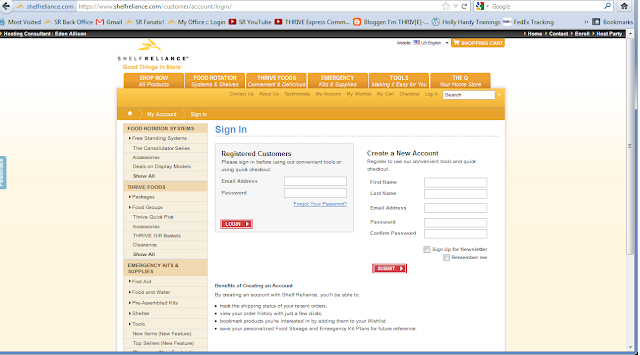
This will bring to My Dashboard. From here you can click View/Edit Q Settings and Shipments (for my family's privacy, I smudged out our order details).
This will bring you to your THRIVE Q Summary. On this page, you can Edit your budget amount (my budget as a Consultant is $60, which is $50 minimum in product and then money for shipping and taxes). You can also Pause your Shipments (you can pause shipments for a month or two without losing your free Platinum Q Club membership. If you pause longer than that, you would have to pay the renewal fees to re-establish that membership. You can restart your Q, though, without that membership if you prefer. But we're here today to Edit the shipment

When you click on Edit, you will go to the Edit Shipments page (below). This will show you what the computer has put into your shipment, based on your
Custom food Plan. In the picture below, I had already made some adjustments but I hadn't finished yet. If there are items planned for your shipment that you don't want, click "Remove" to the right of that item. Then add items from your food plan by clicking on the appropriate food category about halfway done the page. For my order, I wanted to add the
Freeze Dried Green Bell Peppers that are
on sale for June so I selected Vegetables and that category expands to show what's in my food plan.
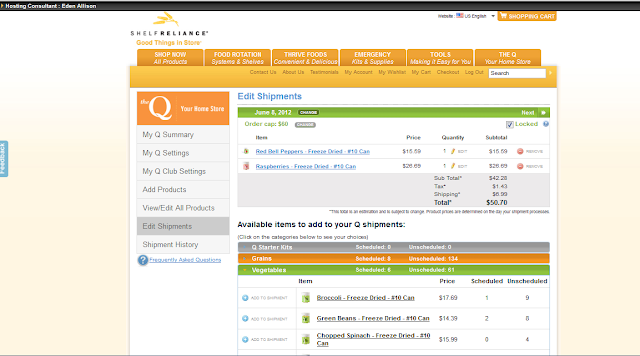
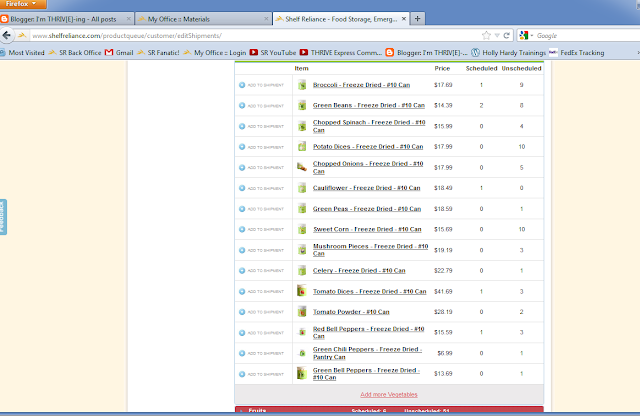
You may have to scroll down to see everything on your screen, like I did. But when I looked for the peppers, it wasn't on my list (but I didn't get that screen shot). So I had to click Add More Vegetables which you can see at the very bottom of the vegetables list.
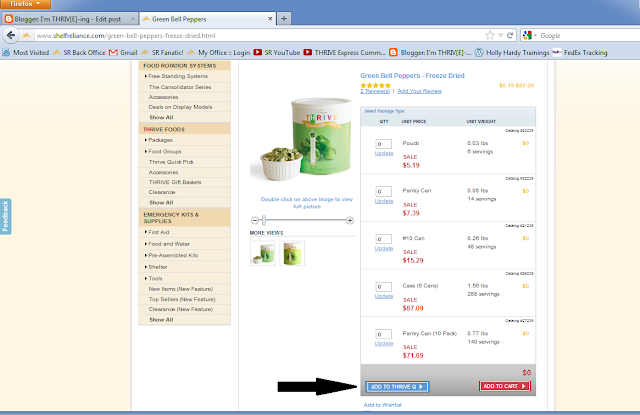
I was then taken to the Food Groups page for vegetables and I selected the Green Bell Peppers. I told it how many I wanted, of which size. In my case, I wanted 1 #10 can of Green Bell Peppers (as I keep using my Green Bell Peppers, I'm thinking that should have been more to add into my plan). I then have two options - Add to THRIVE Q, and Add to Cart. I want to add it into my Q shipment, not an individual order so I selected
Add to THRIVE Q.
You are returned to your THRIVE Q Summary. The item is now listed in the Available Items, but not in your current shipment. So scroll until you find the item (I wanted the Green Bell Peppers) and click Add to Shipment to the left of the item.
A pop up window appears in front of your Q Shipment Summary and asks how many you want in your shipment. You have to click the Up or Down arrows, not type in a number. Then click Update.
The item now shows in your shipment. Now that you've customized your shipment, be sure that the Locked box is checked (upper right of the shipment section). This will prevent the computer from changing the contents of your shipment.
You can also edit future shipments by clicking the Next button that's on that green bar. Here's what the computer says it's going to send me in July. Germade is not a priority for me so I'm sure that will be a change I make for next month. I can do the changes I want now, but I won't - I'll wait to see what goes on special for July and adjust my shipment accordingly. If I knew I was needing a specific item ordered in a future shipment, I would make those changes and then click the Locked button so that it doesn't get changed by the computer later.
I hope this helps you with your Q. If there is any way that I can help with your Q, please let me know! The Q has become invaluable to me in reaching our food storage goals, one step/month at a time.
![I'm THRIV[E]-ing](https://blogger.googleusercontent.com/img/b/R29vZ2xl/AVvXsEh1qmqosaawYjPYTMmcKvDH9wKOO4mEQalcgEM-eSUXQOZMCi-B_-ox8kjfYOvO83nEG1_3dybIhC3sDQibDrnSVd6i1ETV5xhzEem6x506H9uUKoyvFLfolS_iNLR8bvfs-thncRpfMg0U/s1600/Blog+Header+with+thrive-foods.jpg)


